Key commands: git status (check state), git log --oneline (history), git stash (save work temporarily), git reset --soft HEAD~1 (undo commit, keep changes), git reset --hard (discard changes), git rebase -i (clean history). fetch downloads without merging; pull = fetch + merge. Never rebase shared commits.
I keep a text file on my desktop with Git commands I use daily. Every time I forget something, I add it to the list. This post is that list, organized properly.
This is not a complete reference. It is the commands you will actually use at work, with examples that make sense.
Table of Contents
- Setting Up Git
- Starting a Project
- The Basic Workflow
- Branching
- Merging
- Rebasing
- Undoing Things
- Stashing
- Viewing History
- Remote Repositories
- Cherry Picking
- Tags
- Cleaning Up
- Common Workflows
- Git Aliases
- Quick Reference Table
Setting Up Git
Before you start, configure your identity. This is what shows up in your commits.
1
2
git config --global user.name "Your Name"
git config --global user.email "you@example.com"
Check your current configuration:
1
git config --list
Set your default branch name to main (instead of master):
1
git config --global init.defaultBranch main
These are just the basics. For a complete guide covering aliases, credentials, editor setup, and more, see the Git Config Guide.
Starting a Project
You have two options: start fresh or clone an existing repository.
Start a new repository:
1
git init
This creates a .git folder in your current directory. You now have a Git repository.
Clone an existing repository:
1
git clone https://github.com/user/repo.git
To clone into a specific folder:
1
git clone https://github.com/user/repo.git my-folder
The Basic Workflow
Here is what you will do a hundred times a day:
flowchart LR
    A[Working Directory] -->|git add| B[Staging Area]
    B -->|git commit| C[Local Repository]
    C -->|git push| D[Remote Repository]
    D -->|git pull| A

    style A fill:#2d3748,stroke:#4a5568,color:#e2e8f0
    style B fill:#2d3748,stroke:#4a5568,color:#e2e8f0
    style C fill:#2d3748,stroke:#4a5568,color:#e2e8f0
    style D fill:#2d3748,stroke:#4a5568,color:#e2e8f0
- Make changes to files
- Stage the changes you want to commit
- Commit the staged changes
- Push to the remote repository
Check What Changed
See which files have been modified:
1
git status
See the actual changes line by line:
1
git diff
See changes that are already staged:
1
git diff --staged
Stage Changes
Stage a specific file:
1
git add filename.txt
Stage all changes in current directory:
1
git add .
Stage all changes in the entire repository:
1
git add -A
Stage parts of a file interactively:
1
git add -p filename.txt
This is useful when you have multiple logical changes in one file and want to commit them separately.
Commit Changes
Commit with a message:
1
git commit -m "Add user authentication"
Commit all tracked files (skip staging):
1
git commit -am "Fix login bug"
Note: The -am flag only works for files Git is already tracking. New files still need git add first.
Push to Remote
Push to the remote repository:
1
git push origin main
If the branch does not exist on remote yet:
1
git push -u origin feature-branch
The -u flag sets up tracking so you can just use git push next time.
Pull from Remote
Get the latest changes and merge:
1
git pull origin main
Pull with rebase instead of merge (cleaner history):
1
git pull --rebase origin main
I wrote more about the difference between pull and pull with rebase in Git Command Line Basics.
Branching
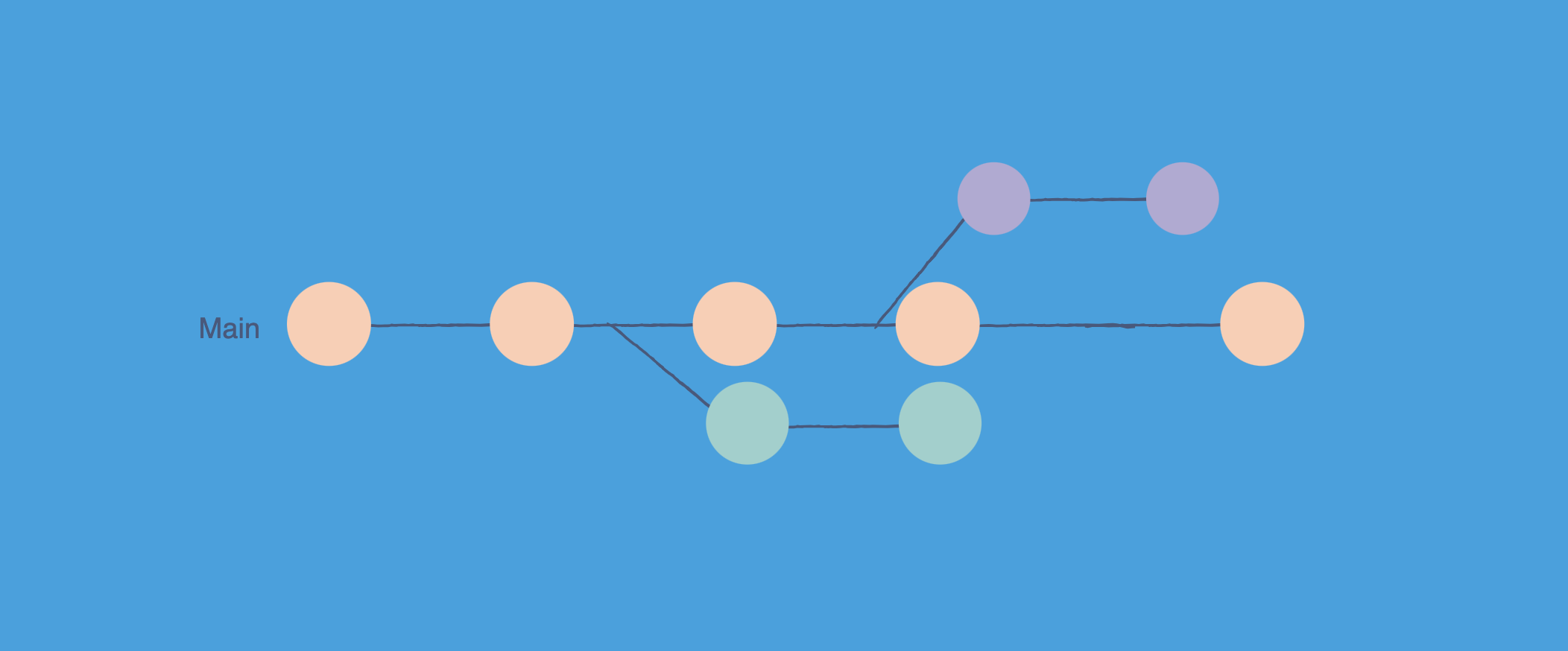
Branches let you work on features without affecting the main codebase.
gitGraph
    commit id: "Initial"
    commit id: "Add auth"
    branch feature
    checkout feature
    commit id: "Start feature"
    commit id: "Continue work"
    checkout main
    commit id: "Hotfix"
    checkout feature
    commit id: "Finish feature"
    checkout main
    merge feature id: "Merge"
    commit id: "Release"
Create and Switch Branches
List all branches:
1
git branch
List all branches including remote:
1
git branch -a
Create a new branch:
1
git branch feature-login
Switch to a branch:
1
git switch feature-login
Or the older way:
1
git checkout feature-login
Create and switch in one command:
1
git switch -c feature-login
Or:
1
git checkout -b feature-login
Delete Branches
Delete a local branch (only if merged):
1
git branch -d feature-login
Force delete a local branch:
1
git branch -D feature-login
Delete a remote branch:
1
git push origin --delete feature-login
Rename a Branch
Rename the current branch:
1
git branch -m new-name
Rename a different branch:
1
git branch -m old-name new-name
Merging
Merge brings changes from one branch into another.
Basic Merge
Switch to the target branch first:
1
2
git switch main
git merge feature-login
This creates a merge commit if there are divergent changes.
Fast Forward Merge
If main has not changed since you branched, Git just moves the pointer forward. No merge commit is created.
To always create a merge commit:
1
git merge --no-ff feature-login
Squash Merge
Combine all commits from a branch into a single commit:
1
2
git merge --squash feature-login
git commit -m "Add login feature"
This is useful when a feature branch has messy commit history.
Abort a Merge
If things go wrong during a merge:
1
git merge --abort
This takes you back to before the merge started.
Rebasing
Rebase moves your commits on top of another branch, creating a linear history.
flowchart TB
    subgraph Before["Before Rebase"]
        A1[main: A] --> B1[main: B]
        A1 --> C1[feature: C]
        C1 --> D1[feature: D]
    end

    subgraph After["After Rebase"]
        A2[main: A] --> B2[main: B]
        B2 --> C2[feature: C']
        C2 --> D2[feature: D']
    end

    Before --> After

    style A1 fill:#2d3748,stroke:#4a5568,color:#e2e8f0
    style B1 fill:#2d3748,stroke:#4a5568,color:#e2e8f0
    style C1 fill:#1a365d,stroke:#2b6cb0,color:#bee3f8
    style D1 fill:#1a365d,stroke:#2b6cb0,color:#bee3f8
    style A2 fill:#2d3748,stroke:#4a5568,color:#e2e8f0
    style B2 fill:#2d3748,stroke:#4a5568,color:#e2e8f0
    style C2 fill:#1a365d,stroke:#2b6cb0,color:#bee3f8
    style D2 fill:#1a365d,stroke:#2b6cb0,color:#bee3f8
Rebase onto main
1
2
git switch feature-branch
git rebase main
Interactive Rebase
Edit, squash, or reorder commits:
1
git rebase -i HEAD~3
This opens an editor showing the last 3 commits. You can:
pick- keep the commit as isreword- change the commit messagesquash- combine with previous commitdrop- remove the commit
Abort a Rebase
If things go wrong:
1
git rebase --abort
Continue After Fixing Conflicts
After resolving conflicts during rebase:
1
2
git add .
git rebase --continue
Warning: Never rebase commits that have been pushed to a shared branch. It rewrites history and will cause problems for anyone else working on that branch.
Undoing Things
Everyone makes mistakes. Git has your back.
Unstage Files
Remove a file from staging (keep the changes):
1
git restore --staged filename.txt
Or:
1
git reset HEAD filename.txt
Discard Changes
Throw away changes to a file:
1
git restore filename.txt
Or:
1
git checkout -- filename.txt
Throw away all uncommitted changes:
1
git restore .
Undo Commits
Undo the last commit, keep changes staged:
1
git reset --soft HEAD~1
Undo the last commit, keep changes unstaged:
1
git reset HEAD~1
Undo the last commit, throw away changes:
1
git reset --hard HEAD~1
Undo a commit that was already pushed:
1
git revert HEAD
This creates a new commit that undoes the changes. Safe to use on shared branches.
For reverting multiple commits, check out my post on reverting multiple commits in Git.
Recover Deleted Commits
If you accidentally reset and lost commits, they are not gone yet:
1
git reflog
This shows all recent HEAD positions. Find the commit hash you need and:
1
git reset --hard abc1234
Reflog entries expire after about 90 days.
Stashing
Stash saves your uncommitted changes temporarily.
1
git stash
This is useful when you need to switch branches but are not ready to commit.
See all stashes:
1
git stash list
Apply the most recent stash:
1
git stash pop
Apply without removing from stash list:
1
git stash apply
Apply a specific stash:
1
git stash apply stash@{2}
Stash with a message:
1
git stash push -m "Work in progress on login"
Delete a stash:
1
git stash drop stash@{0}
Clear all stashes:
1
git stash clear
Viewing History
Basic Log
1
git log
One line per commit:
1
git log --oneline
Show a graph of branches:
1
git log --oneline --graph --all
This is one of my favorite commands. You can see the entire branch structure.
Search Commits
Find commits by message:
1
git log --grep="login"
Find commits that changed a specific file:
1
git log -- filename.txt
Find commits by author:
1
git log --author="John"
Find commits in a date range:
1
git log --since="2024-01-01" --until="2024-12-31"
Show Commit Details
See what changed in a commit:
1
git show abc1234
See who changed each line of a file:
1
git blame filename.txt
Remote Repositories
View Remotes
1
git remote -v
Add a Remote
1
git remote add origin https://github.com/user/repo.git
Change Remote URL
1
git remote set-url origin https://github.com/user/new-repo.git
Fetch vs Pull
Fetch downloads changes but does not merge:
1
git fetch origin
This updates your remote tracking branches (like origin/main) but leaves your local branches unchanged. Useful when you want to see what others have done before merging.
Pull fetches and merges:
1
git pull origin main
This is equivalent to:
1
2
git fetch origin
git merge origin/main
Clean Up Stale References
Remote branches that no longer exist:
1
git fetch --prune
Or set it to happen automatically:
1
git config --global fetch.prune true
Cherry Picking
Copy a specific commit from one branch to another:
1
git cherry-pick abc1234
Cherry pick without committing:
1
git cherry-pick abc1234 --no-commit
This is useful when you need a bug fix from another branch but do not want to merge everything.
Tags
Tags mark specific points in history, typically releases.
Create Tags
Lightweight tag:
1
git tag v1.0.0
Annotated tag (recommended for releases):
1
git tag -a v1.0.0 -m "Version 1.0.0 release"
Tag a specific commit:
1
git tag -a v1.0.0 abc1234 -m "Version 1.0.0"
Push Tags
Push a single tag:
1
git push origin v1.0.0
Push all tags:
1
git push origin --tags
Delete Tags
Delete local tag:
1
git tag -d v1.0.0
Delete remote tag:
1
git push origin --delete v1.0.0
Cleaning Up
Remove Untracked Files
See what would be removed:
1
git clean -n
Actually remove:
1
git clean -f
Remove directories too:
1
git clean -fd
Remove ignored files as well:
1
git clean -fdx
Be careful with -x. It removes everything not tracked, including build artifacts and dependencies.
Common Workflows
Feature Branch Workflow
This is how most teams work:
sequenceDiagram
    participant Dev as Developer
    participant Local as Local Repo
    participant Remote as GitHub

    Dev->>Local: git switch -c feature
    Dev->>Local: Make changes
    Dev->>Local: git add . && git commit
    Dev->>Remote: git push -u origin feature
    Remote->>Remote: Create Pull Request
    Remote->>Remote: Code Review
    Remote->>Remote: Merge PR
    Dev->>Local: git switch main
    Dev->>Local: git pull origin main
    Dev->>Local: git branch -d feature
- Create a feature branch
- Make commits
- Push the branch
- Open a pull request
- Get review and approval
- Merge into main
- Delete the feature branch
- Pull the latest main
Keeping a Fork Updated
When you fork a repository, you need to keep it in sync with the original:
1
2
3
4
5
6
7
8
9
10
11
12
# Add the original repo as upstream
git remote add upstream https://github.com/original/repo.git

# Fetch changes from upstream
git fetch upstream

# Merge into your main branch
git switch main
git merge upstream/main

# Push to your fork
git push origin main
Fixing a Mistake in Production
When you need to fix something fast:
1
2
3
4
5
6
7
8
9
10
11
12
13
14
15
16
# Create a hotfix branch from main
git switch main
git pull origin main
git switch -c hotfix-login-bug

# Fix the bug
# ...

# Commit and push
git commit -am "Fix login timeout issue"
git push -u origin hotfix-login-bug

# After PR is merged, delete the branch
git switch main
git pull origin main
git branch -d hotfix-login-bug
Git Aliases
Save typing with aliases. Add these to your .gitconfig:
1
2
3
4
5
6
git config --global alias.co checkout
git config --global alias.br branch
git config --global alias.ci commit
git config --global alias.st status
git config --global alias.last "log -1 HEAD"
git config --global alias.lg "log --oneline --graph --all"
Now you can use:
1
2
3
git st       # instead of git status
git co main  # instead of git checkout main
git lg       # pretty log graph
Quick Reference Table
| Task | Command |
|---|---|
| Initialize repository | git init |
| Clone repository | git clone <url> |
| Check status | git status |
| Stage all changes | git add . |
| Commit with message | git commit -m "message" |
| Push to remote | git push origin main |
| Pull from remote | git pull origin main |
| Create branch | git switch -c branch-name |
| Switch branch | git switch branch-name |
| Merge branch | git merge branch-name |
| Delete branch | git branch -d branch-name |
| Stash changes | git stash |
| Apply stash | git stash pop |
| Undo last commit (keep changes) | git reset --soft HEAD~1 |
| Undo last commit (discard changes) | git reset --hard HEAD~1 |
| Revert pushed commit | git revert HEAD |
| View commit history | git log --oneline |
| Show commit details | git show <commit> |
| Cherry pick commit | git cherry-pick <commit> |
Next Steps
Once you are comfortable with these commands, look into:
- Git hooks for automating tasks
- GitHub Actions for CI/CD automation
- Signed commits for security
The best way to learn Git is to use it. Make mistakes, undo them, and learn from the process.
Further Reading:
- Git Command Line Basics - More detail on essential commands
- Git Revert Multiple Commits - When you need to undo a lot of changes
- Official Git Documentation - The complete reference
- GitHub Git Cheat Sheet - Printable PDF version
- Atlassian Git Tutorials - Deep dives into specific topics